 COME
COMECheck a Missing COME Verification Code: The first action after opening COME
Diagnose a missing or delayed OTP without repeated requests or sharing secrets. This guide covers the first action after opening COME.
Confirm what was requested
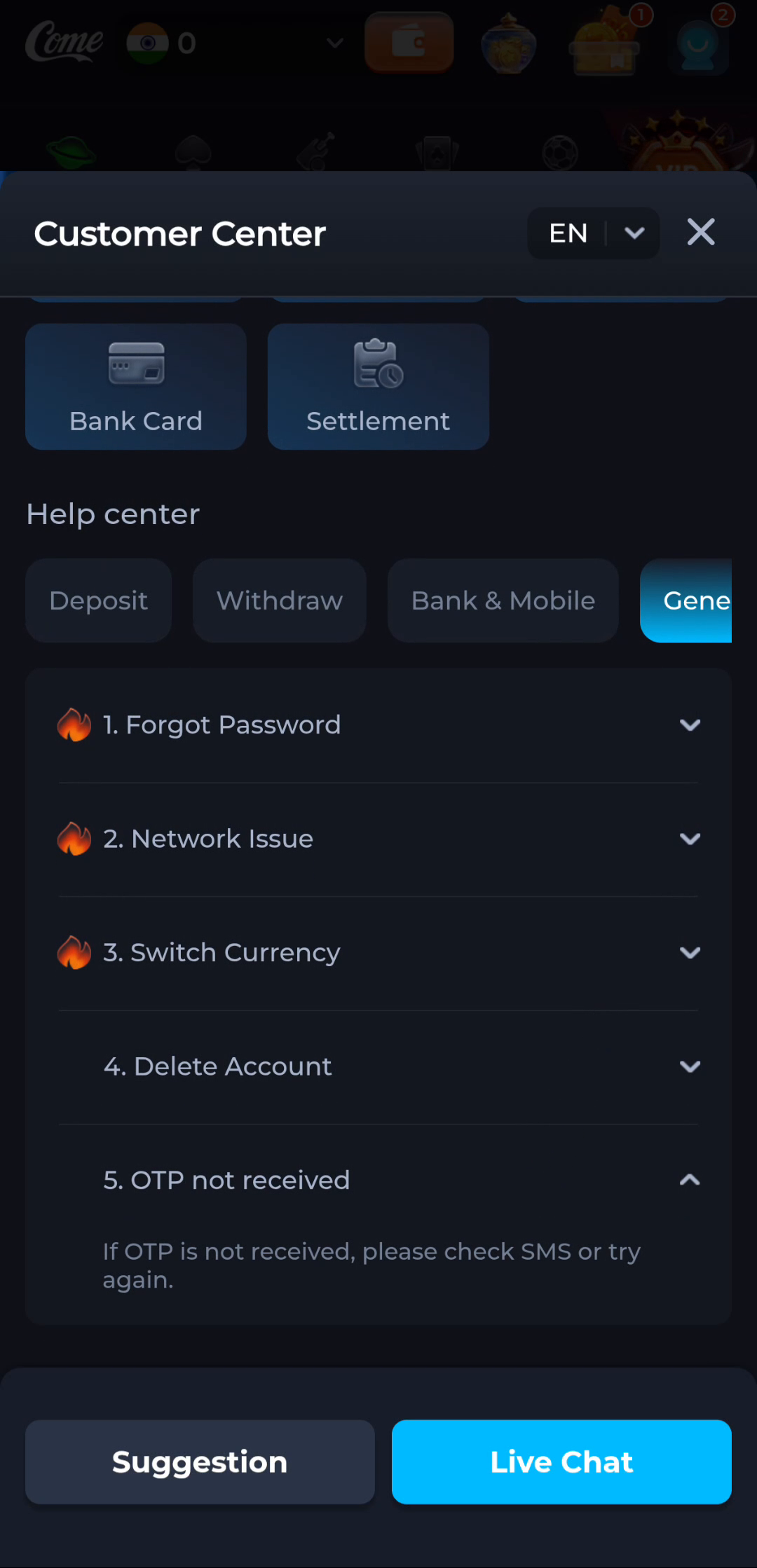
COME General help includes an OTP not received topic. Its illustrated instruction is to check SMS or try again. Start by reading the current product screen: confirm the destination and the channel it actually specifies. A code sent to a different number or account method will not appear on the device you are watching.
If the screen offers a resend timer or cooldown, follow it. This guide does not assign a fixed wait time or code length. Keep the time of the request and the exact message. They are useful for distinguishing no message received from a code rejected after it arrives.
Check the receiving channel
For an SMS request, check the intended phone number and SIM, mobile signal and the messaging application's relevant folders. On a dual-SIM phone, make sure you are watching the line associated with the request. Check whether ordinary messages arrive. A Wi-Fi connection can load the product while SMS delivery still depends on the mobile service.
If other messages also fail, the phone or carrier's normal support process may be relevant. If only this verification message is missing, keep the product request details for its help route. These observations narrow the problem; they do not establish a cause without further evidence.
Handle delayed messages carefully
Repeated resend requests can produce delayed messages in a confusing order. A newer request may invalidate an earlier code, depending on the service. Follow the product's current instructions and use only the code associated with the active request. Do not keep trying a series of old codes or bypass a cooldown.
If a code arrives but is rejected, record whether the product says expired, incorrect, already used or something else. That is a different branch from no delivery. Check the intended task and request before making another controlled attempt. Stop when a restriction or unresolved identity question remains.
Ask for help without sending the code
Use the product's OTP help topic or current private support route. Describe the request time, channel, masked destination and exact error. Never include the code itself, a password or a payment PIN. Remove those details and unrelated notifications before sharing a screenshot.
Receiving a message is only one checkpoint. The next checkpoint is acceptance by the intended product for the action you initiated; successful account access is another. Keep them separate. A login code should not be read to a caller or forwarded to someone promising to fix the account for you.
A worked situation: the first action after opening COME
For example, a visitor sees Fantasy after tapping the entry, then assumes the APK is missing. The visible category is a product destination, not a failed installer. The useful next observation is whether the browser has any completed download from that action; an empty list keeps the task at the web-entry stage.
For this task, diagnose a missing or delayed OTP without repeated requests or sharing secrets.
- Confirm the intended destination and channel.
- Check reception and respect the current resend control.
- Report the precise failure privately without sharing the code.
Keep the result tied to the exact screen and task. A useful stopping point is an understood next step; repeated actions are not a substitute for knowing what the earlier action did.
Questions about this task
Does a working web connection prove SMS works?
No. Product connectivity and SMS reception are separate observations.
Should I keep pressing resend?
Follow the displayed timer or cooldown and avoid accumulating overlapping requests.
A related next step
Locate the stalled stage before testing another connection. Focus: the first action after opening COME.