 COME
COMECOME Connection Checks: The first action after opening COME
Locate the stalled stage before testing another connection. This guide covers the first action after opening COME.
Locate where loading stops
Begin with the last action that completed. Did the app page open? Did the browser finish saving an APK? Did Android complete installation? Did COME open but fail to load a section? These observations separate four different problems that are often all described as a download not working.
A stalled browser transfer is not the same as an installed app waiting for data. A completed APK followed by an installer error is not solved by repeatedly refreshing a game screen. Write down the stage and exact message before changing the connection or software.
Make one connection comparison
Check whether an ordinary trusted website works on the same connection. If it also fails, restore the general connection first. If other websites work but COME does not, that narrows the symptom without proving the service is down. Where permitted, compare with one other trusted connection and observe whether the same action behaves differently.
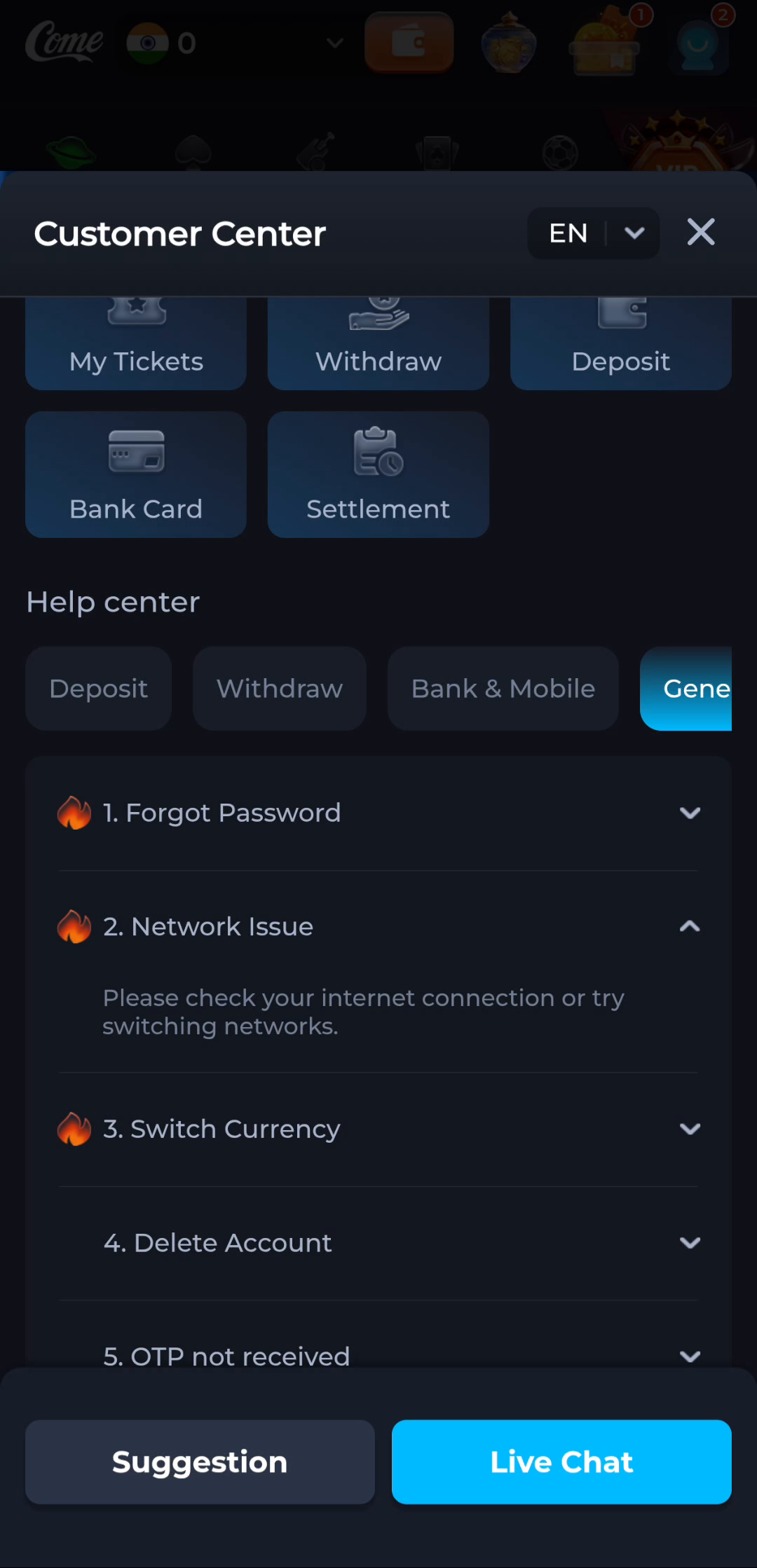
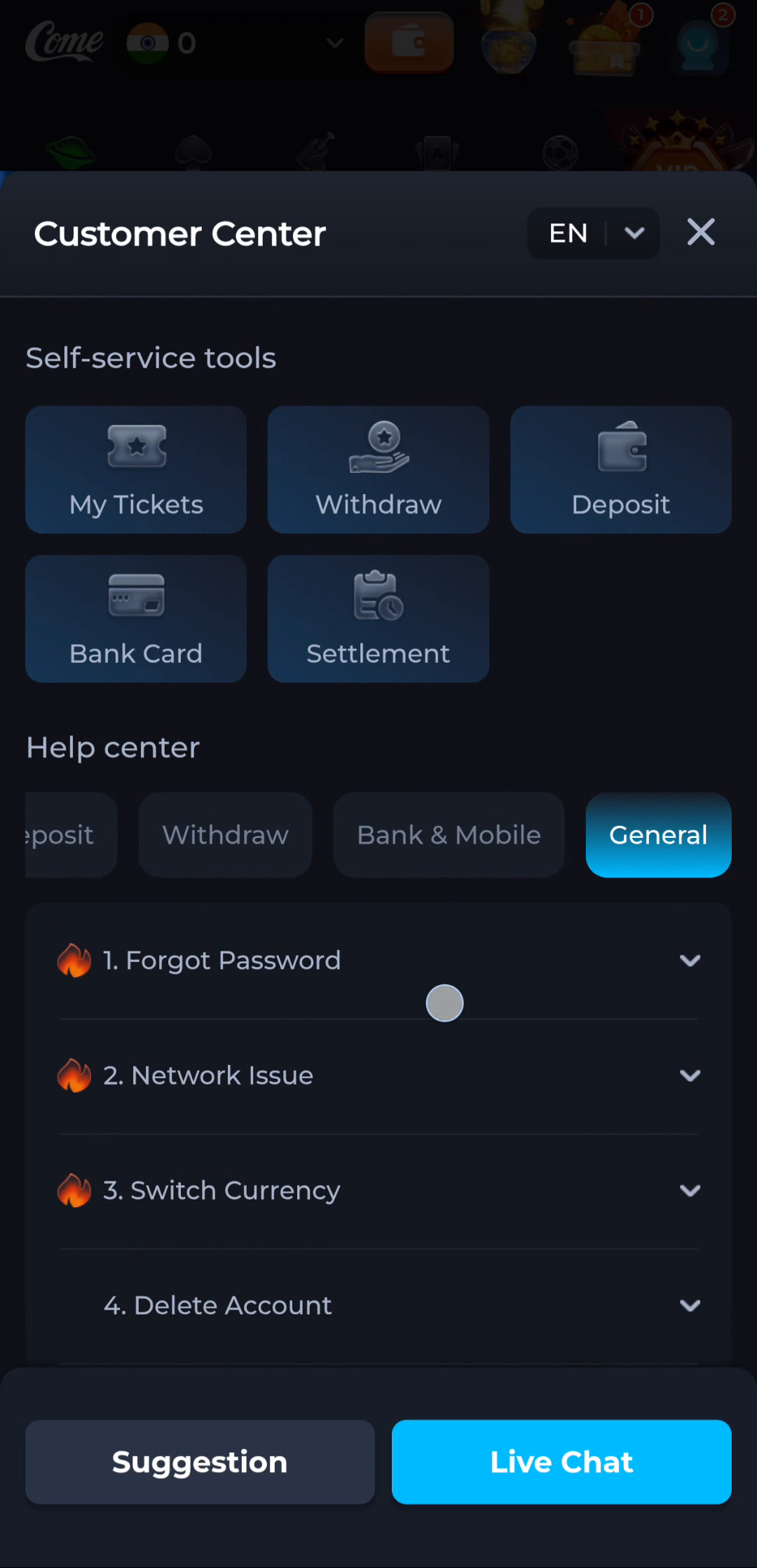
COME's Network Issue help text suggests checking the internet connection or switching networks. Treat this as a diagnostic step, not a guarantee. Do not disable a security tool, change managed-network controls or seek location workarounds simply because the page is unavailable.
Avoid creating a second problem
When the app opens, reinstalling can remove useful context while leaving a remote or account-specific issue untouched. Keep the installed version and note whether one category fails or the whole interface fails. If a transfer is paused, inspect its completion state before starting another copy.
If a sensitive account action appears to be pending, do not repeatedly submit it to test connectivity. Inspect the relevant status and use product help. A loading indicator alone is not proof that a prior request failed or that it is safe to send again.
Report a reproducible symptom
Record the approximate time, connection type, device, stage and result of the one comparison. Mention whether the issue affects every page or a named section. Share only the relevant error, with account secrets and unrelated personal information removed. Stop repeated retries if the result is unchanged and wait for an appropriate response.
A worked situation: the first action after opening COME
For example, a visitor sees Fantasy after tapping the entry, then assumes the APK is missing. The visible category is a product destination, not a failed installer. The useful next observation is whether the browser has any completed download from that action; an empty list keeps the task at the web-entry stage.
For this task, locate the stalled stage before testing another connection.
- Decide whether the browser transfer or an app screen is stalled.
- Keep the exact screen and message while checking ordinary connectivity.
- Compare one trusted connection at a time and retain the result.
Changing several settings at once hides what affected the symptom. Keep the device, account and task stable during a connection comparison. Do not repeat a pending transaction to test a network; a refreshed page and an account action are different events.
Questions about this task
Does switching networks prove the app is at fault?
No. The comparison changes the evidence but does not identify a cause by itself.
Should I redownload after a blank app screen?
First distinguish a completed installation from a connection or service issue; another file may not address it.
A related next step
Observe launch, loading and account access independently. Focus: the first action after opening COME.
COME First-Screen Checks: The first action after opening COME